
2FA Authentication Methods Available on the eMAG Marketplace Platform
Two-factor authentication (2FA) provides extra security for your seller account. We constantly improve the eMAG Marketplace platform and offer you the possibility to choose your preferred 2FA authentication method.
To log into your seller account, you need to enter an OTP (One Time Password) code which can be generated in two ways:
- OTP authentication code in your eMAG account via SMS
- OTP authentication code in your eMAG account via the application the
How to Change the 2FA Authentication Method from Your Seller Account
From your seller account, you have the ability to modify the type of 2FA authentication used at login. You can switch options to choose the one that suits you best. The OTP code via SMS option is the default one that you always use until further changes.
- To use the OTP code via application for authentication, access the My Account – Profile section from the Dashboard. Click on the Permissions tab.
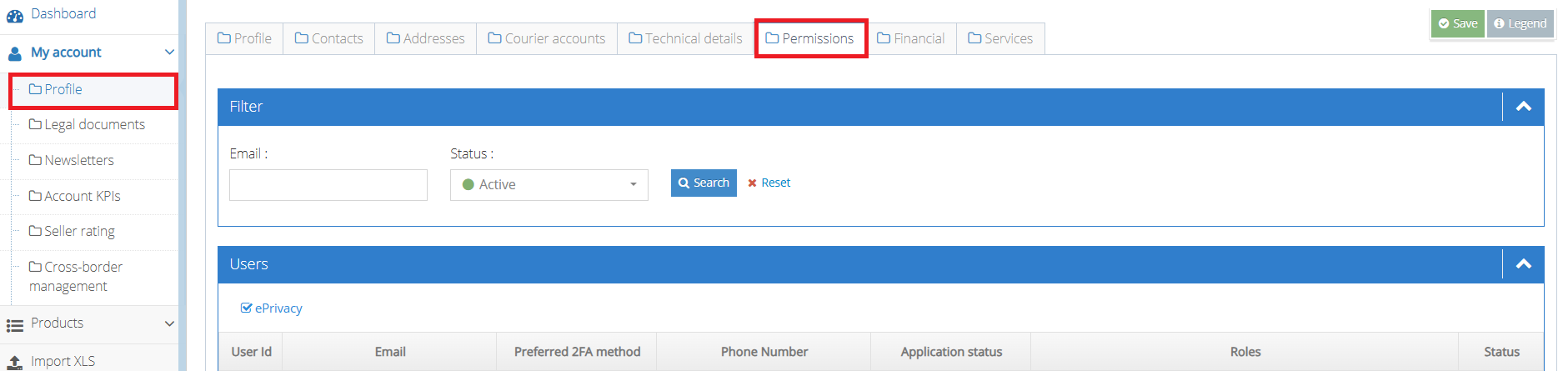
- Next to your user, press the Actions button and a new window will open.

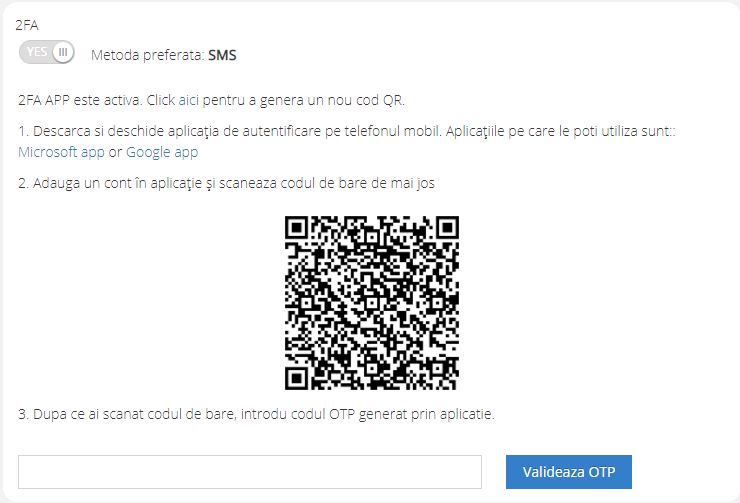
- Here, the preferred login method via SMS will be displayed. Click on the “click here” link and a section will open where you need to scan the QR code from the application installed on your phone.

- Enter the OTP code from the application and press Validate OTP. If you have entered a correct code, then 2FA through the application becomes the main authentication method.
How to Change the 2FA Authentication Method from the Login area
If you use the 2FA authentication method via SMS and don’t have access to the phone number entered on the platform or want to quickly switch to 2FA via application, you can do it directly from the login page.
- Press the Authenticator app button and the instructions page will immediately open.
- Open the Authenticator application available from Google and Microsoft.
- Scan the QR code and enter it in the field available here.
- Press validate OTP and you will log into your seller account with the new 2FA method.
- Attention! You can change 2FA directly from the login page only if you have previously validated an OTP code through the application at least once (from the My Account-Profile section).
How to obtain via the application the OTP authentication code in the eMAG account
From your seller account you have the possibility to change the type of 2FA authentication used to log in. You can switch options to choose the one that suits you best. The option with OTP code via SMS is the default one that you always use until further changes.
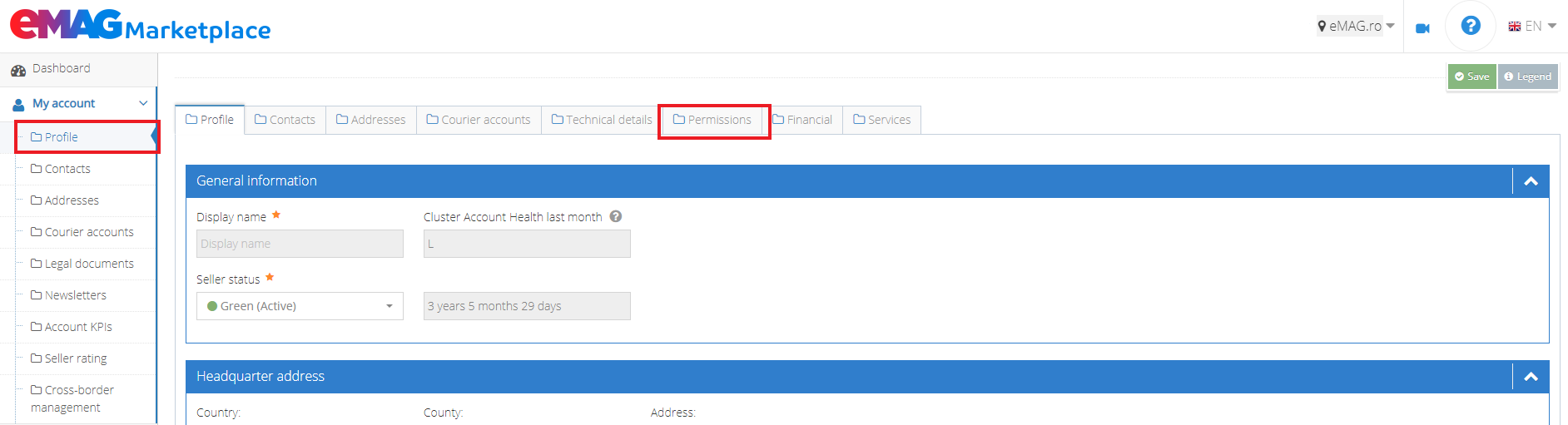
- To use the OTP code through the application to log in, access the My Account – Profile section from the Dashboard.
- Click the Permissions tab.
- Next to your user, press the Actions button and a new window will open. Here it will be displayed your preferred method of logging in via SMS.
- Click on the click here link and a section will open where you need to scan, from the application installed on your phone, the QR code.
- Enter the OTP code from the application and press Validate OTP. If you entered a correct code, then 2FA through the application becomes the main authentication method.
How to change the 2FA authentication method in the login area
If you use the 2FA authentication method via SMS and you do not have access to the phone number entered on the platform or you want to quickly change to 2FA through the app, you can do it directly from the login page.
- Press the login app link and the instructions page will open immediately.
- Open the Authenticator app available at Google and Microsoft.
- Scan the QR code and enter it in the field available here.
- Press OTP validation and you will log into your seller account with the new 2FA method.
- Attention! You can change the 2FA directly from the login page only if you have previously validated an OTP code through the application at least once (from the My Account-Profile section).