
In this tutorial you will find out more information about:
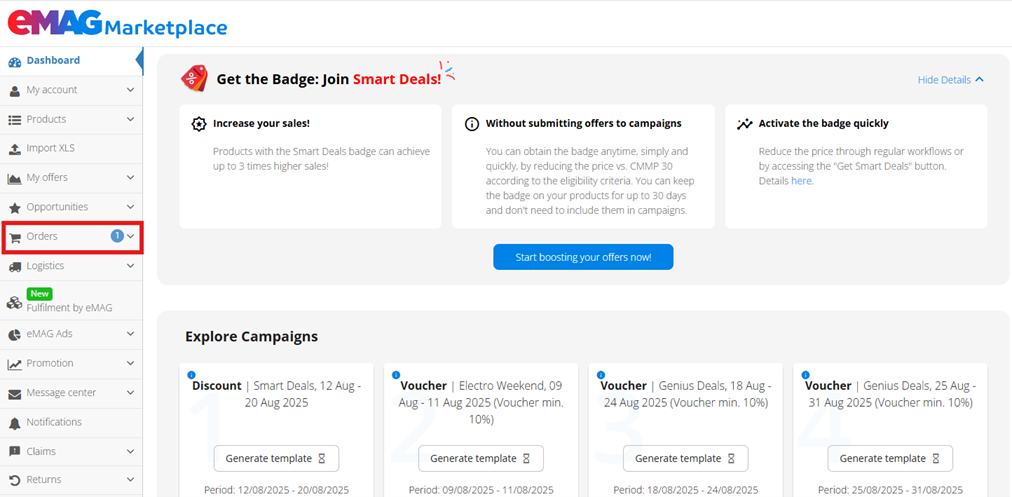
In order to see all the orders received on the eMAG platform, access the Orders menu, from Dashboard.
It will display all the new orders of yours. If you don’t have any new orders or if you only want to see those orders in a certain status, you can filter them using the available tabs right on the top of the order list.
Order statuses
You can easily filter your orders based on the following statuses:
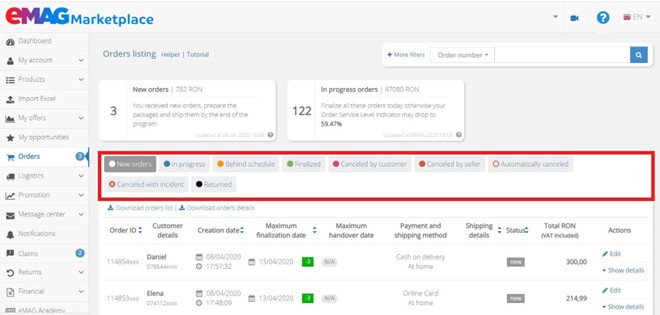
Shows all the newly received orders which you have not processed yet.
Holds those orders which you started preparing them for delivery.
Displays orders which haven`t been delivered until the settled deadline.
Shows all finalized orders.
Contains those orders canceled by the customers.
You can see only those orders canceled by you from different reasons. Note that canceling orders can affect your performance indicators, so it is advisable to find an alternative solution to avoid canceling them.
Shows canceled orders by the platform in certain special situations. For instance, orders are automatically canceled when they remain unfinished for 30 days or when the customer doesn’t want to pay for the order.
Displays only orders which haven`t been finalized on time or whose returns haven`t been finalized within the established time frame and they are closed with incident.
Orders which have been returned by the customers and the afferent values were refunded.
Order filtering area
You can also use the Quick search button available on the top of the page which allows you to apply more filters at the same time. This allows you to search for orders by selecting the:
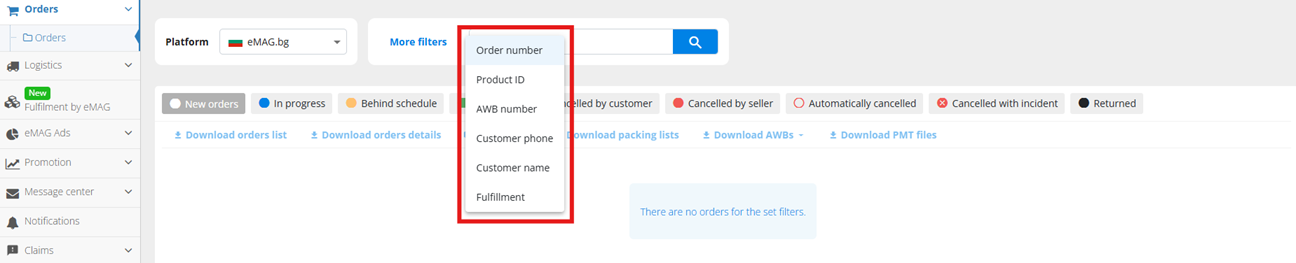
- Order number
- Product ID
- AWB number
- Customer phone
- Customer name
- Fulfillment
Press the Search button and see the results.
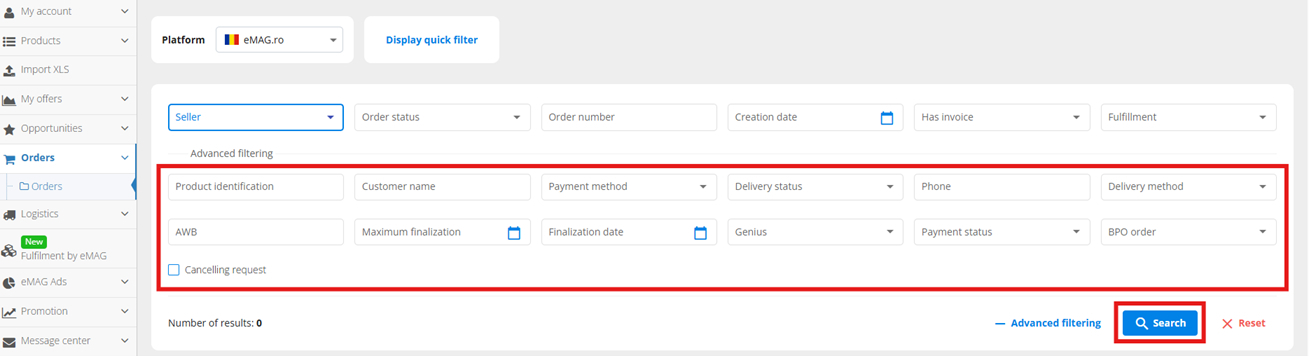
Also, by clicking on the +More filters button you will be able to apply additional filters to your search:
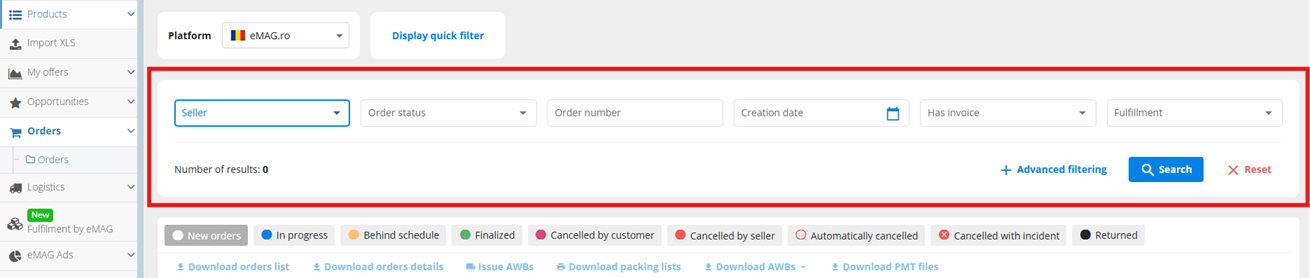
- Seller (you can choose between accounts from RO/BG/HU platforms)
- Order status
- Order number
- Creation date
- Has invoice
- Fulfillment
If you press the +Advanced filtering button, it will display all the available filters which can be used when you want to see only certain orders of your listing in a quick manner. Once you have selected the wanted filters, press Search.
Action widgets which require your immediate attention
eMAG Marketplace interface has set of widgets which provides you with a facile view of your account state regarding the most important actions to be taken every day.
These widgets are displayed in the orders, returns or delivery sections of your account and each of them contains a call-to-action text which will automatically apply a predefined set of filters, when pressed.
Some of the widgets represent extensions which will display to you a forecast of a specific account health indicator. For example, you can quickly see how much a performance indicator can increase or decrease, depending on your next actions or the request actions from the widgets on the eMAG Marketplace platform.
Using these widgets, you will be able to identify in a quick manner those orders, return requests, AWBs or other items which can lead to the account inactivation, if you do not take the recommended actions from the widget.
This will help you act quickly to prevent and repair when needed those aspects which affect your performance indicators.
The information structure of a widget:


Displays the number of orders or other elements which require attention for the widget.
Contains a short description of the widget.
Displays some additional information on the widget`s elements (like the total value of the orders involved in the widget).
Contains the required actions which needed to be done and their benefits or consequences if you do not act as the widget recommend. Some of the widgets might also offer a forecast for the performance indicator impacted by the widget`s elements.
Display the date and the time of the last update of the widget information.
Order widgets
Shows all the new received orders from the beginning of the month up to the moment you access the orders interface (the information is not updated in real time). In the moment you press this button, it will automatically filter all the orders having the new status. This will not include the FBE orders.
This widget displays orders in progress which have not been finalized yet, but they still meet the finalization deadline. The widget also contains a prediction for the evolution of the Order service level indicator. And it refers to the orders having the in progress status, from the first day of the current month until the day you access the widget. Once you press the widget, it will filter the new, received and prepared orders
Displays the orders which have not been finalized, and which have already past the finalization deadline. This widget also presents a prediction on the Order finalization rate evolution. If you press on this widget, it will display the: new, received and prepared orders. Take into account that there are filtered only those orders received from the beginning of the current month until the moment you access the orders interface.
The widget triggers the in progress orders which will be closed with incident starting the next day, if not finalized. This also shows a prediction about the value of the Order incident rate indicator. In this widget are included orders received from 16th of the previous month until today. Once you click on the widget it will filter all the: new, received and prepared orders which are to be closed with incidents.
Expose all the orders in progress which do not have an AWB issued through the eMAG Marketplace platform. It contains a prediction for the Parcel tracking coverage indicator and triggers all the orders received and prepared from the beginning of the current month until today.
Displays orders finalized without AWB issued through the eMAG Marketplace platform. The widget also shows a prediction for the Parcel tracking coverage indicator. When clicking on the widget if filters all finalized orders without AWB from the first day of the current month until today.
Deliveries information widgets

The widget shows the deliveries that have not yet been handed to the courier and their maximum pickup date is today. The widget displays a prediction on the Parcel handover service level value and it triggers all the parcels of the finalized and storno orders from the first day of current month until today.
Display the parcel which have not been handed over to the courier and the maximum handover date is in the next days. The widget shows all the pending parcels with days until or after maximum preparation day less than 1.
You can find more information about Returns interface widgets here.
Use the information displayed in each widget to finalize on time orders, returns and parcel delivery to couriers. The predictions will be of great help to keep your performance indicators in optimal status.