When do you need to remove VAT from an order
If you sell on another platform than you are a headquarter (for example you are Romanian seller and you sell on the Bulgarin platform) and the client is a legal entity, and your company has intra-community VAT, then VAT does not have to be on the invoice, and the amount must be refunded to the customer.
The intra-community VAT code is an individual identification number that allows companies that do not pay VAT, whether they are PFA or SRL, to make transactions with other international companies on the territory of the European Union.
- Access the Orders menu from the Dashboard and choose the order for which you should remove VAT.
- Press the Edit button and if all the conditions are met you will see an active Remove VAT button, as in the image below:

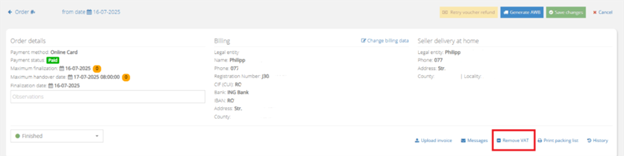
Once accessed, VAT will be removed both from the product and from the delivery fee (if the delivery is made under the contract between the Seller and the courier company) or it will be removed only from the product if the order is delivered to a locker. Delivery fees will still have VAT applied, as the delivery is supported by eMAG (VAT payer).
If the order has been already paid, you can issue a refund to the customer using the Refund button (this is available only if you have an amount to return to the customer).
Correction on the invoices
The invoice to the final customer must reflect the modification in the platform, and you can have two cases:
- You don’t have the invoice issuing option from eMAG Marketplace activated and have issued the invoice from your own accounting – the correction on the invoice must be made by you.
- You have the invoice issuing option activated, and then the invoice is canceled and reissued by following the steps below:
- Remove VAT from the order by accessing the Remove VAT button.
- In the Attachment Type section, we find the Reverse invoice button followed by another confirmation Reverse invoice.
- After you have canceled the initial invoice that contains VAT, the Issue Invoice button will be available in the same place.
- Click on Issue Invoice and the existing information on the platform, VAT 0, will be taken.